
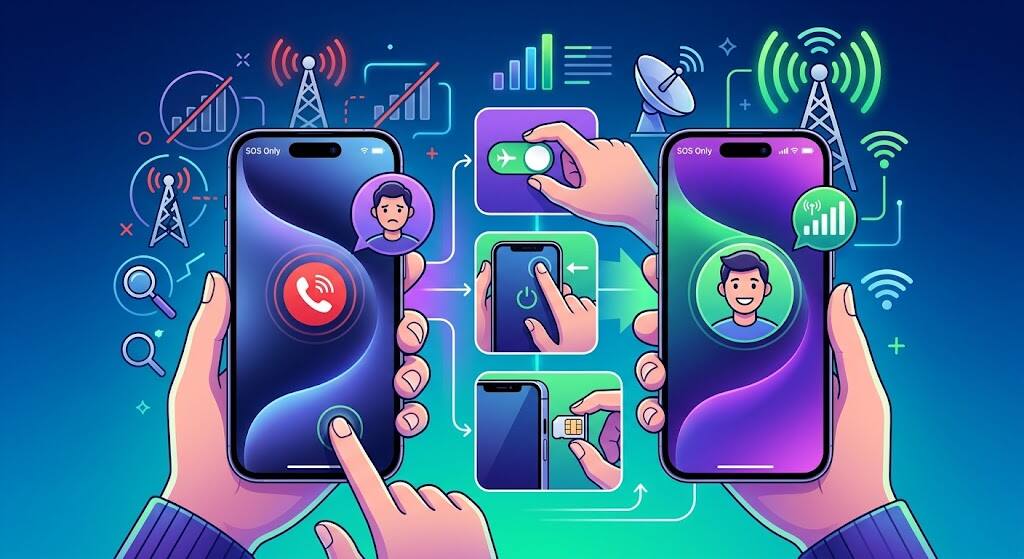
If your iPhone says SOS or SOS Only, you can still try an emergency call, although normal calls, texts, and cellular data are unavailable. A call still requires a reachable network, so never test emergency services.
When SOS replaces your signal bars, the sudden disconnection can feel alarming. Most cases involve coverage, a carrier problem, or a SIM setting—not a failed iPhone.
Follow these checks in order, from a 15-second reconnection to carrier or repair support.
- What SOS on iPhone Really Means
- 5 Quick Fixes to Restore Cellular Service
- When an SOS Only iPhone Needs Repair
- Conclusion: Restore the Connection, Not Just the Icon
- Frequently Asked Questions
- Editorial note: This original service-journalism guide was fact-checked against Apple guidance updated in June 2026. The customer example is clearly labeled as anecdotal, not technical proof.
What SOS on iPhone Really Means
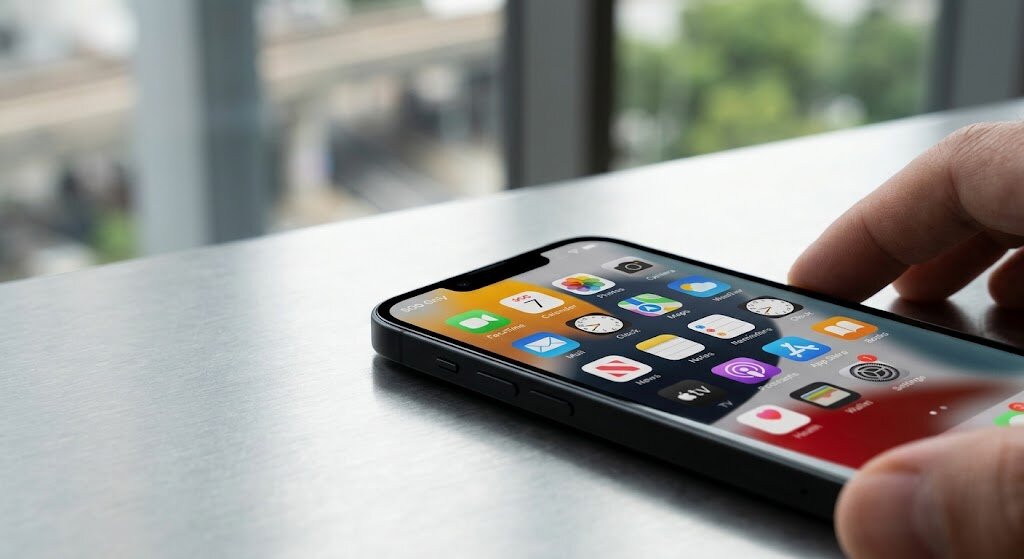
SOS on iPhone is a network-status warning, not a mode you accidentally enabled. In the United States, Canada, and Australia, SOS or SOS Only means your carrier is unavailable, but another reachable network may carry an emergency call. Elsewhere, the same problem may appear as No Service or Searching.
Do not confuse the warning with Emergency SOS or a satellite connection. On iPhone 14 or later, Emergency SOS via satellite may appear in supported regions after cellular and Wi-Fi fail. Carrier-provided satellite service may display SAT instead.
Common triggers include dead zones, outages, account blocks, disabled lines, eSIM failures, damaged SIMs, old carrier settings, roaming restrictions, or antenna damage.
5 Quick Fixes to Restore Cellular Service
Fix 1: Toggle Airplane Mode for 15 Seconds
Open Settings. Turn on Airplane Mode, please stand by for 15 seconds, then turn it off. Allow up to one minute for the signal bars to return.
This forces the modem to register again. If SOS appears after leaving an elevator, basement, tunnel, or rural road, the reset may reconnect the phone once coverage returns.
Fix 2: Restart Your iPhone
Open Settings > General > Shut Down. Drag the slider, wait 30 seconds, then hold the side button until the Apple logo appears.
A restart reloads the cellular software and may clear a temporary failure. If the screen is frozen, use Apple’s force-restart instructions. Do not factory-reset the phone yet.
Fix 3: Check Your Carrier, Account, and Local Outages
Connect to Wi-Fi. Open your carrier’s app or status page. Confirm that your line is active, your bill is current, and no outage affects the area.
Ask support to verify the plan, recent number port, IMEI status, and eSIM assignment. Only the carrier can correct these account-level faults.
Use context. If several nearby customers on the same carrier show SOS, wait for network recovery. If only your phone fails, continue below.
During the February 2024 US carrier outage, an Apple Support Community thread received 2,400-plus “Me too” responses. Users described working Wi-Fi but failed calls. The anecdote shows why outage checks should precede resets.
If supported, open Settings > Cellular > Wi-Fi Calling for temporary calling over Wi-Fi.
Fix 4: Update iOS and Carrier Settings
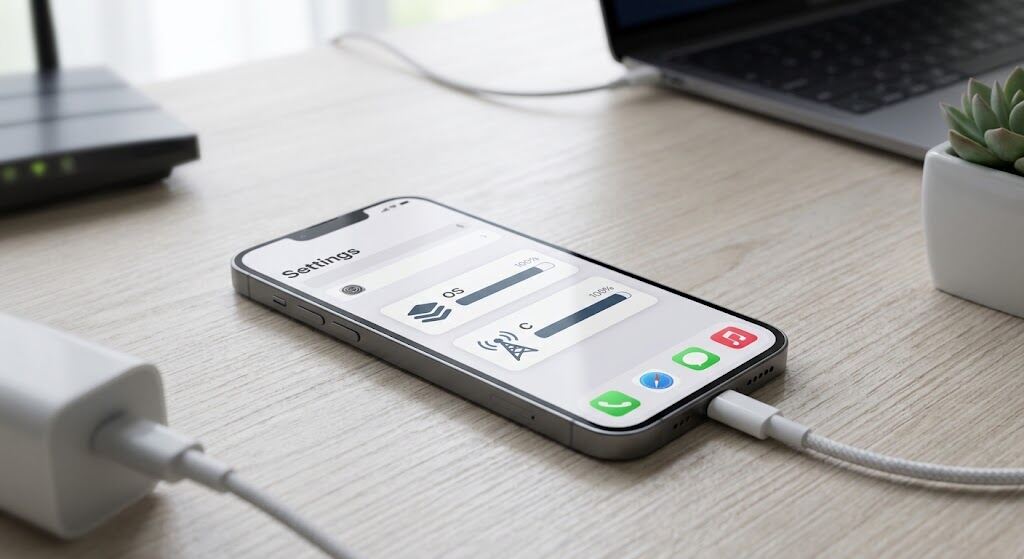
Connect to Wi-Fi and power. Open Settings > General > Software Update, then install the latest iOS offered for your device.
Next, open Settings > General > About and wait several seconds. If Carrier Settings Update appears, tap Update. These small updates improve connectivity and may add 5G or Wi-Fi Calling. A new SIM or eSIM may require one.
On iOS 18 or later, the current Apple Support app can also run cellular diagnostics.
Fix 5: Correct SIM, eSIM, Dual SIM, and Roaming Problems
Open Settings > Cellular. Select the affected number and enable Turn On This Line. With Dual SIM, inspect both plans and confirm the intended voice and data lines are active.
If a plan is missing, ask the carrier to reactivate or reissue the eSIM. Do not delete an eSIM without carrier instructions; you may need a new activation code.
For a physical SIM, switch off the iPhone, remove the tray, and reinsert the card securely. Replace a damaged or unreadable SIM.
Traveling? Open Settings > Cellular > select the line > Cellular Data Options. Enable Data Roaming only if your plan permits it. Then open Settings > General > Date & Time and enable Set Automatically.
Still seeing iPhone SOS? Open Settings > General > Transfer or Reset iPhone > Reset > Reset Network Settings. Photos and apps remain, but Wi-Fi passwords, VPN settings, and custom APN details are removed.
For an iPhone 5s, 5c, or earlier, retired 3G networks may prevent reconnection. Ask the carrier about compatibility or replacement.
Also Read: How Hidden Desk Humidity Silently Destroys Port Gaskets
When an SOS Only iPhone Needs Repair
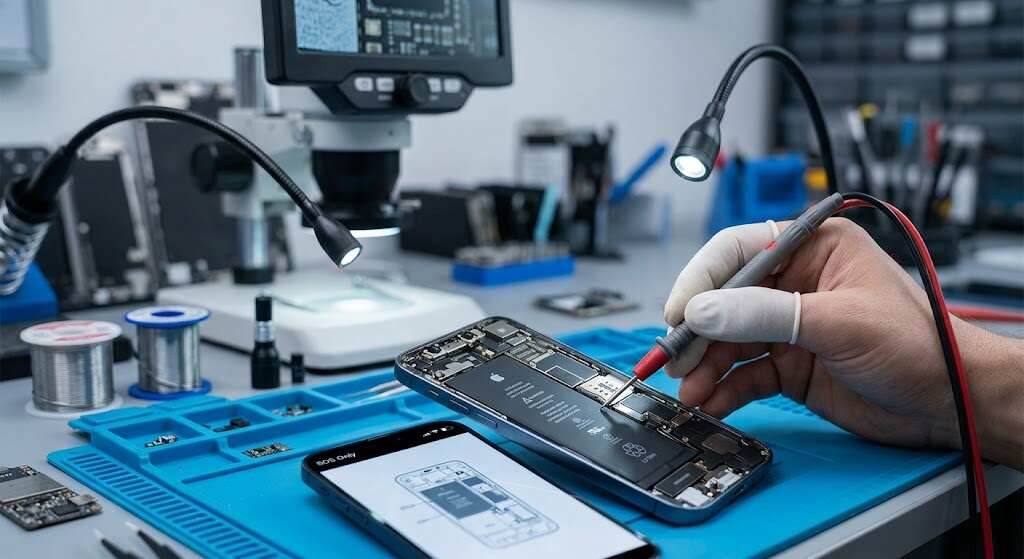
Arrange service when the carrier confirms the account, coverage, and SIM work, but one iPhone shows SOS everywhere. Mention any drop, liquid exposure, or repair so a technician can test the antenna, SIM reader, and modem.
Conclusion: Restore the Connection, Not Just the Icon
An iPhone stuck in SOS mode is pointing to the link between the device and its carrier. Toggle Airplane Mode, restart, verify the network and account, install updates, then inspect the SIM, eSIM, Dual SIM, or roaming setup. Escalate only after those checks. This order protects your data and gives support useful evidence if expert repair is necessary.
Frequently Asked Questions
1. Can I call or text when my iPhone says SOS?
Normal cellular service will not work. Call the local emergency number only for a genuine emergency. Wi-Fi apps or Wi-Fi Calling may still work.
2. Does SOS mean my iPhone was hacked?
Usually, no. It means carrier registration failed. If service disappeared after an unexpected SIM-transfer alert, contact the carrier immediately and secure the account.
3. Why did SOS appear after an iOS update?
A restart may expose an outdated carrier profile or eSIM problem. Restart once, check Settings > General > About, then ask the carrier to reprovision the line.
4. Why does my iPhone show SOS only at home?
Walls, terrain, congestion, or tower work can weaken indoor coverage. Compare service outdoors and with another customer; use Wi-Fi Calling if available.
5. Can I turn off SOS mode?
There is no SOS-only switch. Restore the carrier connection and the label disappears. Disabling Emergency SOS safety features will not restore service.
