
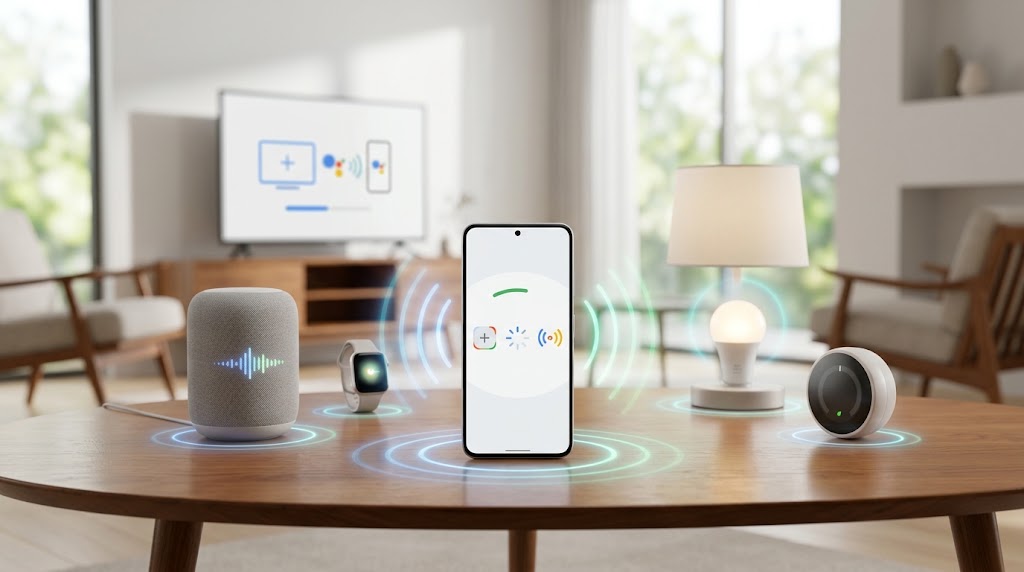
“Ok Google set up my device” seems like a general shortcut for all your technical setup needs. Though it serves perfectly for transferring data to an Android phone and setting up an Android TV, it’s not possible for it to provision speakers, lightbulbs, or even watches with one voice command. Moreover, by the end of 2026, the “Ok Google” command will launch Gemini instead of Google Assistant. The setup of smart home equipment will continue to require matching codes and permissions within the Google Home app.
- The Shift of 2026: Keeping Your Wake Word but Changing Your Assistant
- Prepare First—This Prevents Most Setup Loops
- New Android Phone or Android TV: Follow the Official Fast Route
- Nest and Smart-Home Gear Still Need the Home App
- Open Assistant Settings—and Fix Recognition Before Blaming Hardware
- Protect Personal Results on Shared Devices
- Conclusion
- Commonly Asked Questions
The Shift of 2026: Keeping Your Wake Word but Changing Your Assistant
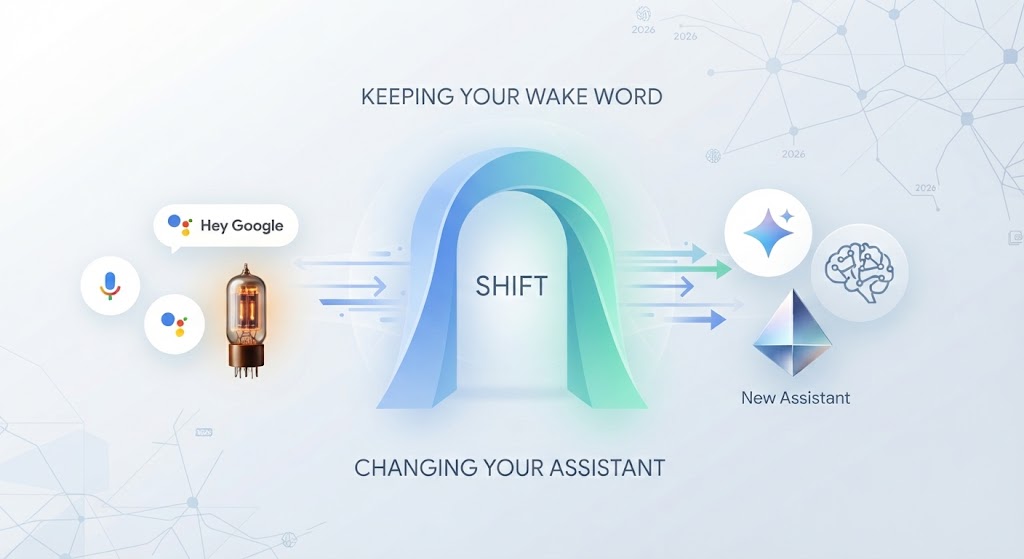
According to Google’s announcement in August 2026, the deprecation process for the original mobile Assistant will begin in early September. Although the current Gemini Help documentation contains an opt-out option, users with the same handsets may experience totally different set-up menus during the roll out process. In practice, the guideline is easy: “OK Google” is the wake-up phrase; either Gemini or Google Assistant will do. If voice commands fail, you can simply write your request into the Google app.
Prepare First—This Prevents Most Setup Loops
Before proceeding:
- Make sure both your devices are charged and the old phone remains unlocked.
- Update Google app and Google Home app.
- Turn on Bluetooth, Wi-Fi, and required nearby-device permissions.
- Back up the old phone and confirm its Google Account password.
- Factory reset the old speaker/display before linking it to the new one.
Note: Currently, the requirements for speaker and display by Google need you to have Android 9 or higher; WPA2-Enterprise Wi-Fi is not supported in this process.
New Android Phone or Android TV: Follow the Official Fast Route
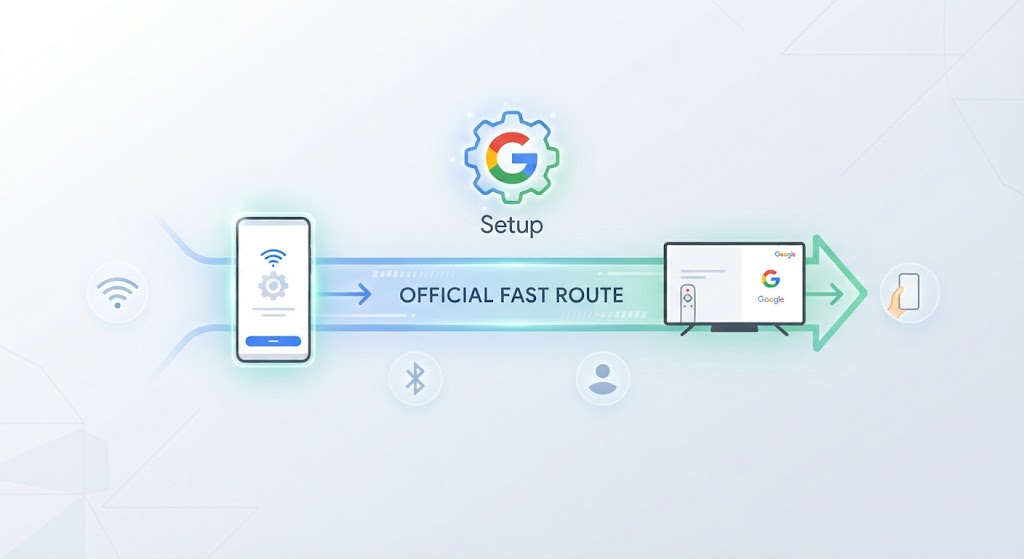
In order to configure your new Android device, you should first turn it on and connect it to the internet, followed by choosing Copy apps & data. On the old device, you need to launch the Google application and use voice commands by saying or typing, “OK Google, set up my device.” Ensure that the shapes, numbers, or code are similar before making a selection of items for transferring. Google states that whether using cable or wireless means, the same data is transmitted, but this prompt typically appears only once during setup.
Quick Start is how to get started with Android TV. On your Android phone, just ask “OK Google, set up my device,” then input the code for your TV and give it a name.
In practice, if using voice search gives you standard web pages in response, don’t just yell “OK Google, louder!” Type out “slowly and clearly” “set up my device” in the Google application or scan the QR code of your TV.
Nest and Smart-Home Gear Still Need the Home App
For connecting the Nest speaker/display, start by opening Google Home app and select Add > Device; then use either the QR code scanning or enter the setup code. Next, select your home, room, and Wi-Fi, and configure Voice Match, personal results, and media services. For products based on Matter or “Works with Google Home” technology, you might have to install the manufacturer app first in this process flow. Here, “OK Google” commands the product upon pairing, but it does not eliminate secure account linking.
Also Read: What Is an HTTP 403 Forbidden Error and How to Fix It Properly
Open Assistant Settings—and Fix Recognition Before Blaming Hardware
“Ok Google, open Assistant settings.” In a home setting, use Google Home and navigate to Home settings -> Google Assistant -> Voice Match or Gemini for Home voice assistant -> Voice Match. When your wake phrase does not work, manually open assistant settings, turn on hands-free mode, and train your voice again.
Some anecdotal reports in Verified Google Play reviews mention that the microphone is not opening itself or Voice Match becomes unreliable after updates; there has been one report recently in the Home-community about a discovery stall as well. It is just a report and does not prove that there is a general issue, but it highlights a sensible troubleshooting sequence – check permissions and account, get closer, restart the phone and device, restart the router, and factory reset if it was someone else’s device before.
Protect Personal Results on Shared Devices
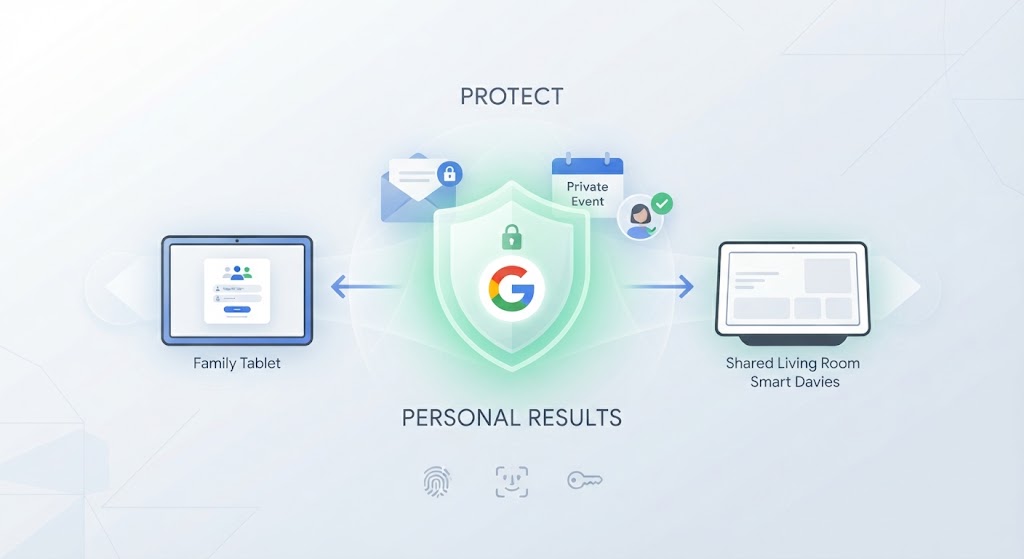
Voice Match technology might expose personal schedules, travel routines, and media histories from shared speakers at home. Have different profiles for everyone in the house, disable your personal information in areas that are guest-related, and check what information is stored through Google My Activity. It’s nice to have convenience, but not at the cost of privacy.
Conclusion
The ideal approach towards 2026 is not that of constantly giving orders to one’s phone. Begin with “OK Google, set up my device,” and then depend on the codes that match, current software, back-ups, and good privacy settings to finish the job properly. If either Gemini or Google Assistant responds, a good set-up is the way to go.
Commonly Asked Questions
Does “Ok Google, set up my device” work with any devices?
Well, not exactly. This is applicable mainly for Android device transfers and Android TV. For speakers and other smart home devices, it will generally be needed to have Google Home, a QR code, or the brand’s app.
Will “Ok Google” work after Gemini is introduced as a replacement for Google Assistant?
Certainly. The eligible devices will be able to make use of the same command for Gemini. Different devices, languages, accounts, and rolling dates will produce different results.
How can I access assistant settings without using my voice?
Launch either Google Home or Gemini and tap the profile icon to select the appropriate Assistant or Voice Match option.
Will this approach work with my iPhone?
Yes, the iPhone will be able to use the Google Home for the eligible smart home devices; however, Android phones will make use of the Google app for transferring.
Why cannot Google Home find my device?
Make sure that the device is turned on and connected to the Bluetooth and network. You may need to update the app and reboot the phone.
This independently written guide was checked against current Google documentation and public user reports.
