

DNS updates could cause a site to display the wrong content, an old server, or even prevent the website from opening in Chrome altogether. One of the fastest ways of solving this problem is to flush the DNS cache. The reason you need to clear the DNS cache in Chrome is that the browser maintains its own internal DNS resolver cache. Even when a website is updated, Chrome may still have the old hostname records cached in it.
This is one of the most frequent hurdles faced by many users; cleaning the browsing history does not mean cleaning the DNS cache of Chrome. Chrome has its own DNS cache as an additional layer which helps to improve the process of resolving hostnames. The DNS cache may become outdated, resulting in misdirected connections, update failures, and even the “cannot find the site” message. The community discussion forums and IT support forums still recommend starting with Chrome’s built-in DNS utilities.
How “Clear DNS Cache” in Google Chrome Works
If you clear your Google Chrome DNS cache, you will delete all the stored DNS records between the hostnames and IP addresses. That is why clearing DNS cache in Google Chrome is important when you change websites, CDNs, DNS records, or experience network issues. To put it simply, clearing the DNS cache in Chrome means that the browser should forget the previously stored information and search for a new one.
This explains why clearing the DNS cache in Chrome might help solve an issue, while simple page refresh cannot. The browser may use the old host record, if you have just updated DNS records or switched to a new network.
How to Clear DNS Cache of Google Chrome Fast
Here is the exact way.
Step 1: Access DNS page of Chrome
Type in the address bar:
chrome://net-internals/#dns
Press Enter. The page is often referenced as a place where Chrome holds its host cache.
Step 2: Press “Clear host cache”
On the mentioned page click on:
Clear host cache
With this action, you will be able to clear DNS cache of Chrome and delete any old DNS entries of the browser. This is the key step for clearing Chrome DNS cache.
Step 3: Flush Chrome socket pools
Now proceed to:
chrome://net-internals/#sockets
And click on:
Close idle sockets
Flush socket pools
Most of the recently published guides and IT manuals advise performing this additional step because Chrome is able to maintain network connections despite the fact that you have cleared the DNS cache.
Also Read: PR_END_OF_FILE_ERROR: Solve Firefox SSL Protocol Failures
Why Flushing Sockets Often Makes the Difference
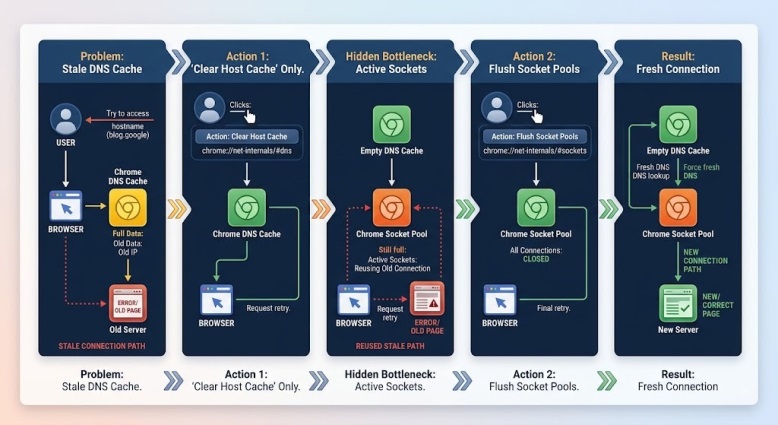
This is the part many quick tutorials skip. Users may clear the Chrome DNS cache, reload the website, and still think nothing changed. In reality, Chrome may still be holding onto older network connections through its socket pool, which can make the browser appear “stuck” on the same bad route. That is why combining a DNS cache clear with socket flushing is usually more effective than clearing host cache alone.
In real troubleshooting situations, this matters a lot. A web developer testing a newly migrated domain may see the old site in Chrome, while the same domain opens correctly in another browser or on a phone. In that case, clearing Chrome’s DNS cache is often the first smart move because the browser may simply be serving old local DNS information.
When is clearing the DNS cache in Chrome required in practical life
There are certain instances in practical life when clearing the DNS cache in Chrome becomes essential:
- You have modified the DNS settings of your website, but Chrome is still loading the website from the previous server.
- The website is accessible via mobile data but not via Chrome on your computer.
- You have changed the Wi-Fi network or DNS provider, but there are certain inconsistencies with Chrome.
- Your website’s new hostname resolves to an incorrect IP address due to cached DNS records.
Discussions regarding Chrome DNS cache are usually initiated by users who think that the website is down due to some issues, while in reality, the problem lies in the browser’s lookup. That is why clearing DNS cache in Chrome is a practical solution in 2026.
What to Do If Clearing Chrome DNS Cache Does Not Work
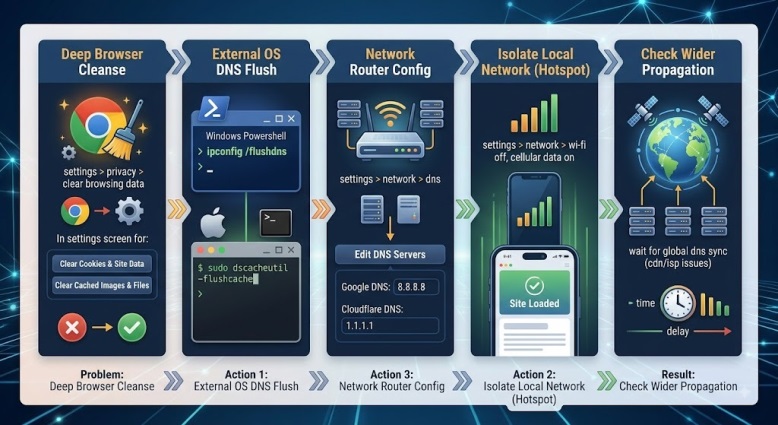
If clear dns cache chrome does not solve the issue, do not assume the site is broken. It may mean the DNS problem exists outside Chrome’s own cache. In that case, close and reopen Chrome completely after clearing the host cache and flushing sockets, then retest. Some technical guides also stress that Chrome’s browser cache is only one layer of the broader connection path.
This is where experience matters. Users in community threads often discover that chrome dns clear fixes browser-only issues, but persistent problems may point to the operating system DNS cache, router DNS behavior, or the website’s actual DNS propagation status. So if dns cache clear chrome does not help, the next step is to test the domain in another browser, another network, or another device before blaming the website.
Conclusion
It’s obvious why the DNS cache clear in Chrome will remain relevant in 2026 – it solves a common problem of browsers without putting the user through the trouble of dealing with complex network issues. There is a separate DNS host cache in Chrome that, when outdated, will make websites look like they have a resolution issue even though it’s not the case. The best way to do this is not only to clear the DNS cache in Chrome but to follow the best practices of flushing socket pools, restarting Chrome and testing the site using another connection path.
For regular users, web administrators, and owners of small businesses, here’s the bottom line: if a website looks wrong, loads from the old server, or does not work after a DNS update, clearing the DNS cache in Chrome is one of the quickest ways to solve the issue. Since DNS cache problems in Chrome are usually mistaken for much more serious website problems, the ability to properly clear the DNS cache in Chrome can help save a lot of time.
Frequently Asked Questions
What is the method to flush the DNS cache in Chrome?
Navigate to chrome://net-internals/#dns, select Clear host cache, and switch to chrome://net-internals/#sockets, where you will need to pick Close idle sockets and Flush socket pools.
Are clearing Chrome DNS cache and clearing browsing history one and the same?
No, clearing Chrome DNS cache means deleting DNS host cache, while clearing browsing history implies erasing history of visited pages.
Why should I flush the DNS cache in case of migration to a new website?
Chrome might retain outdated information about the hostname-to-IP mapping despite changes made in website DNS records.
What is the DNS cache in Chrome?
DNS cache in Chrome is a database that stores DNS hostnames and speeds up web requests. In case these records become outdated, websites may load improperly.
What do I do if flushing the DNS cache didn’t help me?
The problem may not be related to Chrome at all – it could be your system DNS cache, your DNS network settings, or the problem with incomplete DNS propagation.
