
Anyone who has used the graphic settings in a modern PC game would probably be familiar with the DLAA and DLSS choices, wondering which one to pick. The choice between DLAA and DLSS depends entirely on how you balance visuals and performance. DLAA delivers crystal-clear, pristine visuals if your computer can already run the game flawlessly. On the other hand, DLSS is the way to go if you need higher frames per second (FPS). While DLSS remains the smarter option for the average gamer, DLAA is excellent if your system has power to spare.
| Feature | DLAA | DLSS |
|---|---|---|
| Image Quality | Excellent; focuses on cleaner edges and near-native clarity | Very good to excellent; depends on mode |
| Performance Impact | Lower FPS than DLSS because it renders at native resolution | Higher FPS because it upscales from a lower internal resolution |
| AI Usage | Uses NVIDIA’s AI anti-aliasing at native resolution | Uses NVIDIA’s AI upscaling to improve performance |
| Best Use Case | Single-player, cinematic, image-quality-first gaming | Competitive, demanding AAA games, higher resolutions, ray tracing |
- What is the Difference Between DLAA and DLSS?
- Which One Should You Use for Your Gaming Setup?
- Performance Comparison: Frame Rates vs. Visuals
- Is DLAA Better Than DLSS for Image Quality?
- Is DLSS Better Than DLAA for Performance?
- How to Enable DLAA or DLSS in Your Game Settings
- What to Do if DLAA Is Greyed Out in the Menu
- Concluding Thoughts
- FAQ
What is the Difference Between DLAA and DLSS?
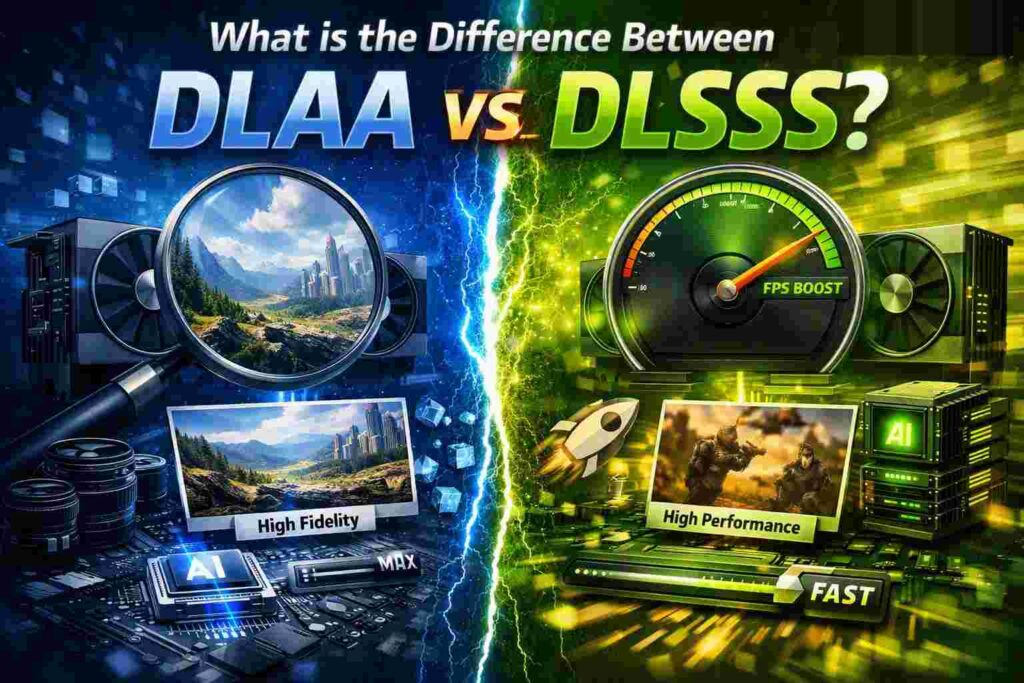
In practice, here is how they compare: DLAA provides better picture quality at native resolution, while DLSS improves performance by rendering a lower number of pixels and recreating the image through AI.
DLAA stands for Deep Learning Anti-Aliasing. The anti-aliasing method is used to provide smoothed edges for such elements as objects, lines, plants, and far-away details. DLAA applies the artificial intelligence hardware of NVIDIA to improve these edges without changing the native resolution of the game.
DLSS stands for Deep Learning Super Sampling. Instead of rendering every single pixel at native resolution of a monitor, the game is rendered in lower internal resolution and then the image is improved with the help of AI. Such approach provides noticeable improvement in FPS.
Both technologies require NVIDIA RTX hardware and special processors called Tensor Cores. From the practical point of view, Tensor Cores are the part of the RTX graphics card which performs all AI calculations required for these technologies.
Practical differences can be described as follows:
- Use DLAA when you want better edges, less shimmering, and best picture quality.
- Use DLSS when you want better performance, especially in 1440p or 4K.
- Choose DLSS Quality when the compromise between visual effects and FPS is needed.
- Use DLAA only if your FPS rate is quite good enough.
Which One Should You Use for Your Gaming Setup?
You make your choice not due to the limitations of marketing but limitations of image quality, with one question playing a key role: do you find yourself limited by image quality or by frame rate?
DLAA should be used in the following cases:
- When your GPU achieves your target frames per second (FPS)
- When your gameplay style includes slower-paced single player sessions
- If you notice shimmering on fine details
- When you care about high quality images for screenshots
- At 1080p or 1440p with enough headroom of your GPU
DLSS should be used if:
- You need higher FPS
- You play in 1440p ultrawide or in 4K resolution
- You use ray tracing/path tracing
- You see unstable or variable frame rates
- You play fast-paced games that require quick response
A good rule of thumb from real life: when your game achieves 90-120 stable FPS, you can try DLAA. If FPS falls down to the 40-60 FPS, start with DLSS Quality.
Performance Comparison: Frame Rates vs. Visuals
This is where the compromise comes into play.
Unlike DLSS, DLAA technology does not exist to boost your gaming speed. It exists to provide higher visual clarity, which means it requires more power than DLSS and, consequently, works closer to the “quality” mode than “balance”.
The purpose of DLSS technology is quite different – it aims at providing the performance boost. In case of performance-intensive games, this boost may be huge – TechPowerUp found that DLSS and FSR modes in Alan Wake 2 provided up to 45% performance gains at 1440p and 4K, which proves how important the upscaling is in the current PC gaming landscape.
However, regarding coverage related to visual quality for Alan Wake 2, DLAA Native should be chosen when the visual clarity is more important than performance. Indeed, many gamers understand that DLAA gives the clearer picture, while DLSS produces higher frame rates.
Real-life examples based on widely played games
And here’s what you will commonly observe in the RTX-based games of today:
Cyberpunk 2077: After enabling the ray tracing, DLSS will usually be the optimal option, particularly if you are playing in 1440p and 4K resolutions.
Alan Wake 2: DLSS can provide a big performance gain while DLAA is best if you want to achieve maximum visual quality.
Cinematic games based on story-telling: DLAA will most likely suit you well if your device is powerful enough.
FPS and action games: DLSS will be more suitable for daily usage.
Should you prefer to stick to one solid recommendation, DLSS Quality will probably be the right option for you.
Is DLAA Better Than DLSS for Image Quality?
Yes, usually. If both are done correctly, DLAA will produce better results overall.
The improvements can be seen more easily when there is:
- Thin geometry like fences, wires, branches, and railings
- Vegetation
- Subtle motion shimmer
- Text at small distances
- High contrast scenes
It’s important to remember that DLSS doesn’t have to look bad – in many cases it can even look great. In some games, the differences are not as large as people think. However, if the frame is frozen and analyzed carefully, DLAA can beat DLSS in stability and edge smoothing.
Of course, there’s one thing to keep in mind – the price of quality is lower performance.
Is DLSS Better Than DLAA for Performance?
Of course! Performance is the very essence of DLSS.
By activating DLSS, the engine renders less pixels, relieving the burden from the GPU. Further, the reconstruction process of the frame by the AI makes it close to the native one.
These situations are where the technology comes into play the most:
- You play at 4K
- You have Ray Tracing
- Your GPU operates near its peak
- You seek smoother frame timing
- You look for headroom to increase settings
As a rule of thumb, here is what you should do:
- Need extra FPS? – DLSS
- Enough FPS? – DLAA
How to Enable DLAA or DLSS in Your Game Settings
Most supported games place these settings in the Graphics, Display, or Upscaling menu.
Follow these steps:
- Open your game’s Graphics Settings
- Find Upscaling, Anti-Aliasing, or NVIDIA DLSS
- If available, select DLSS or DLAA
- For DLSS, choose a mode such as Quality, Balanced, or Performance
- Test in a demanding area of the game for 2 to 3 minutes
- Watch both FPS and image stability
Recommended starting point
- 1080p: Try DLAA first if your GPU is strong enough
- 1440p: Start with DLSS Quality
- 4K: Start with DLSS Quality or Balanced
- Ray tracing on: DLSS usually makes more sense
- Competitive games: prioritize DLSS or even lower-latency settings
What to Do if DLAA Is Greyed Out in the Menu
This is one of the problems that can be solved quickly.
Why DLAA may be unavailable
- Your graphics card is not an RTX card
- The game supports DLSS but not DLAA
- The game should get an update
- Your NVIDIA driver is too old
- Another upscaler like FSR or XeSS is chosen
- Settings for resolution scaling conflict
Fast fixes
- Install new version of NVIDIA driver
- Restart the game after adjusting resolution
- Disable other upscalers
- Set another display mode in the game
- Verify if the developer implemented DLAA in addition to DLSS in the game
The fact is that there are some games that implement DLSS only and omit DLAA.
Concluding Thoughts
In the case that there’s no room left for ambiguity and a clear conclusion needs to be drawn: go for DLSS if you need more performance and for DLAA when you prioritize image quality.
For most PC gamers, DLSS Quality provides the perfect base for the experience, while DLAA should be preferred by enthusiasts with some headroom in their performance.
FAQ
Does DLAA help FPS?
No. DLAA is meant to boost visual fidelity, not performance. In most cases, it will perform slower compared to DLSS.
Is DLSS blurry?
Not always. While early versions had minor ghosting, modern DLSS Quality mode looks remarkably sharp, often matching or outperforming native resolution at 1440p and 4K.
Is DLAA worth using at 1080p?
Maybe. Since aliasing and shimmer artifacts are visible even at 1080p, DLAA can help if you have an excess of power in your GPU.
Is DLAA good for use with ray tracing?
Only if your GPU is powerful enough. Otherwise, DLSS should be preferred in most games featuring ray tracing.
