

When you encounter a web browser error that says, “server IP address could not be found,” your mind automatically goes towards assuming a problem on the hosting side. The reality, however, is quite different because the problem lies in how your computer, your web browser, your router, or your DNS service could not convert a domain name to an IP address that can be reached. This explains why the same website could be failing on one computer but opens up just fine on a mobile phone with a different internet connection.
The Root Causes of the “Server IP Address Could Not Be Found” Error
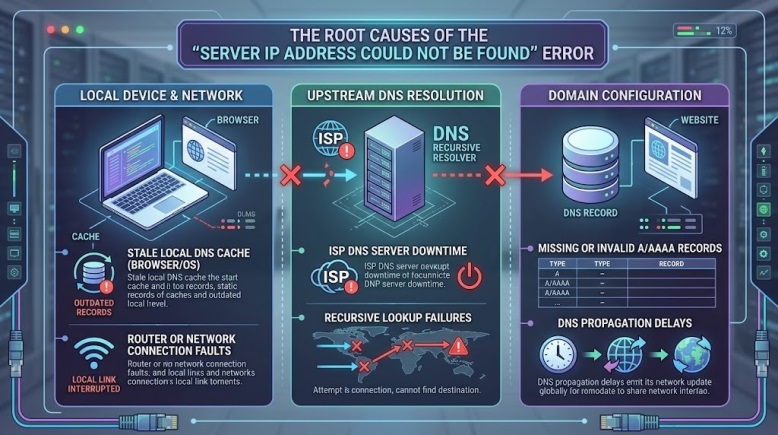
The error message “server IP address could not be found” generally implies a DNS lookup problem, and not a failed server. DNS is akin to the internet’s address book: it converts an address such as example.com to the IP address of the server. If that fails, you may receive similar messages as “server cannot be found,” “server can’t be found,” “DNS address could not be found,” or Chrome’s more generic “This site can’t be reached.”
More specifically, there are five most frequent reasons that come to mind:
- Incorrect domain name or an incorrect hosts file entry
- Corrupted DNS cache in either your browser or the OS
- Faulty DNS servers from your ISP or router configuration
- Network interference due to VPN or proxy use or security software
- DNS misconfiguration on the domain side or inadequate DNS propagation
Start With Scope: Is It Your Device, Your Network, or the Domain?
One of the most effective ways to troubleshoot the problem is to check the scope without modifying any settings first. Open the site in another browser, another device, another network. In case the problem occurs only with one browser, it indicates cache DNS issue within a browser. In case the issue persists in all devices in the same office/home, it is likely due to DNS issue related to router or ISP DNS. In case the issue occurs everywhere, there might be some problems with the domain’s DNS configuration.
For instance, a typical customer ticket goes something like that: “I cannot access the server with Wi‑Fi connection, while it is available on 5G”. This immediately redirects the troubleshooting to router/DNS issue. The other common ticket scenario – it takes hours after migrating a website until the message “server IP address could not be found” is no longer seen since the A record has been changed, however, the DNS configuration is incorrect.
The Fixes That Actually Solve It
1. Verify the domain and test DNS behavior
First, check for any spelling mistakes. After that, perform a lookup through the use of the system. For Windows users, nslookup domain.com is usually enough to determine whether there is an IP address returned by DNS or not. When no IP address is returned, then the issue lies above the browser.
2. Clear browser DNS and browser cache
Cache entries for DNS are stored in browsers themselves. In case if Chrome or Edge caches some old information, you will still get the error “server cannot be found” despite the problem being fixed everywhere else. Recommendations on the matter always suggest that one should clear cache and try to refresh DNS internally.
3. Flush the operating system DNS cache
This is one of the most efficient ways of fixing this particular error message because it will remove any stale cache that may exist on your computer. In Windows, you should open a Command Prompt and type the following command:
bash
ipconfig /flushdns
This is particularly useful when the error message is triggered by recent changes in your DNS or web host.
4. Change your DNS servers
If the ISP’s recursive server is slow or unreliable, using a public recursive server would work. In many tutorials, there is an advice on how to use public DNS that works properly such as Google Public DNS or Cloudflare DNS in case the user gets a “server cannot be found” error in more than one domain.
There is a scenario from a real life when there are few domains that cannot be accessed in a network environment in an office, for example, and the problem goes away after changing the DNS in the adapter to a public recursive server.
5. Restart DNS client, router, VPN, or proxy
The Microsoft community help guide and more generic troubleshooting sources also note that such local DNS client service, network adapter, a working virtual private network (VPN), or even a proxy can have an impact on DNS resolution. In case the error message is appearing when a VPN connection is established, one should try disabling the VPN and run the diagnostic check again.
Also Read: What Is an HTTP 403 Forbidden Error and How to Fix It Properly
When the Problem Is Actually on the Website Owner’s Side
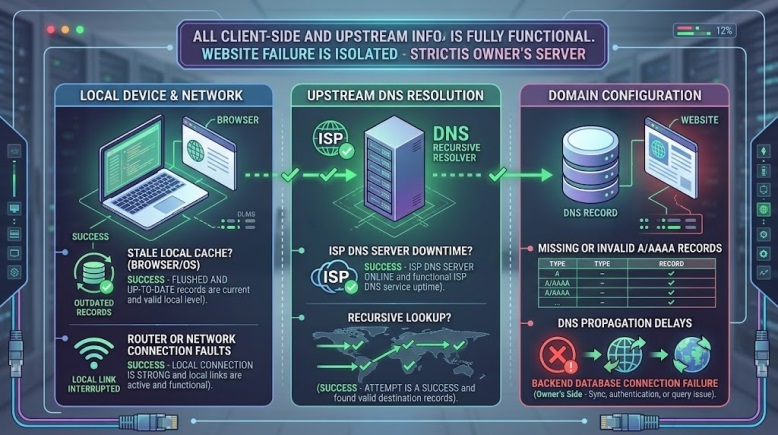
If you manage the site, do not just look into local issues, but check the following:
- The domain is set to point to the correct nameservers
- A/AAAA record is created and pointing to the correct server
- There have been no typos made in DNS configuration recently
- Global propagation of the domain has completed
- CDN/DNS onboarding has been properly done
As stated in Cloudflare forum examples, incorrect DNS onboarding and misconfigured records can leave a domain in a situation where the browser will inform about the “server IP address could not be found”, although the web server is perfectly fine.
Conclusion
The following procedure is necessary to solve the issue related to the “server IP address could not be found” error: first of all, one should consider this issue as a DNS resolution error rather than a vague problem associated with a web browser. The next step will consist in evaluating the scale of the problem, clearing the cache for both the browser and the operating system, flushing DNS, and changing the resolver.
After all these actions, it will be possible to look into domain records or propagation. The reason behind that is the fact that experienced engineers solve the issues like “server cannot be found” and “server can’t be found” faster because they understand what is the source of the problem – it may be browser, device, network or DNS zone.
FAQs
What does it mean when I receive the message “server IP address could not be found?”
This message indicates that the browser failed to translate the domain name into an IP address. In almost all cases, this is related to DNS problems rather than server hardware problems.
Why would one device display “server cannot be found,” but another doesn’t?
Different DNS cache, browser cache, VPN service, and local network configuration of different devices may cause this behavior. It usually implies that the issue lies in your configuration, not a global issue.
Does Flushing Your DNS Fix the “Server Can’t Be Found” Error?
Yes, because DNS flush will eliminate any outdated DNS entries on your computer which cause the issue.
Do I need to switch to a new DNS server?
Changing your DNS servers can be a good technical solution for this error in case if you receive it from multiple sites or only from your local network.
How long will DNS propagation cause this problem?
After you have changed your DNS settings, there will be propagation period which will depend on the Time To Live values of your DNS settings and resolver cache of some DNS providers.
